
MBOX is a mailbox archive file format used by many email clients, including Mozilla Thunderbird, Apple Mail, Opera, and PocoMail. It is a plain-text file type that stores an offline copy of mailbox items, such as emails, attachments, contacts, calendars, etc. Outlook, on the other hand, supports the PST file format. Hence, users are unable to open and view MBOX files in Outlook. In this article, we will see how to view or open MBOX files in Outlook.
Table of Contents
What are the Methods to Open MBOX Files in Outlook?
If you are wondering how to open MBOX files, then there are two ways to do so. One way is to open the MBOX file(s) using a compatible email client (e.g., Mozilla Thunderbird) and save the email messages as separate EML files. Another way is to convert MBOX file to PST format. Let’s look at them in detail.
Method 1: Save MBOX Emails in EML Format and Transfer them to Outlook
As a workaround, you can save email messages from your MBOX file as EML files. For this, you’ll need to use a supporting email client like Mozilla Thunderbird. Once you have the EML files, you can drag and drop them into your Outlook account. Let’s see how.
Note: We will be using Mozilla Thunderbird to demonstrate the process. You can use any other email client.
Part 1: Download Mozilla Thunderbird and Install the ImportExportTools NG
- Download and install Mozilla Thunderbird on your PC.
- It will prompt you to configure a user account. Enter your email ID and password, and follow the on-screen instructions.
- After adding the email account, install the ImportExportTools NG add-on. Go to Settings > Add-ons and Themes.
- Search for ImportExportTools NG. Click on Add to Thunderbird.
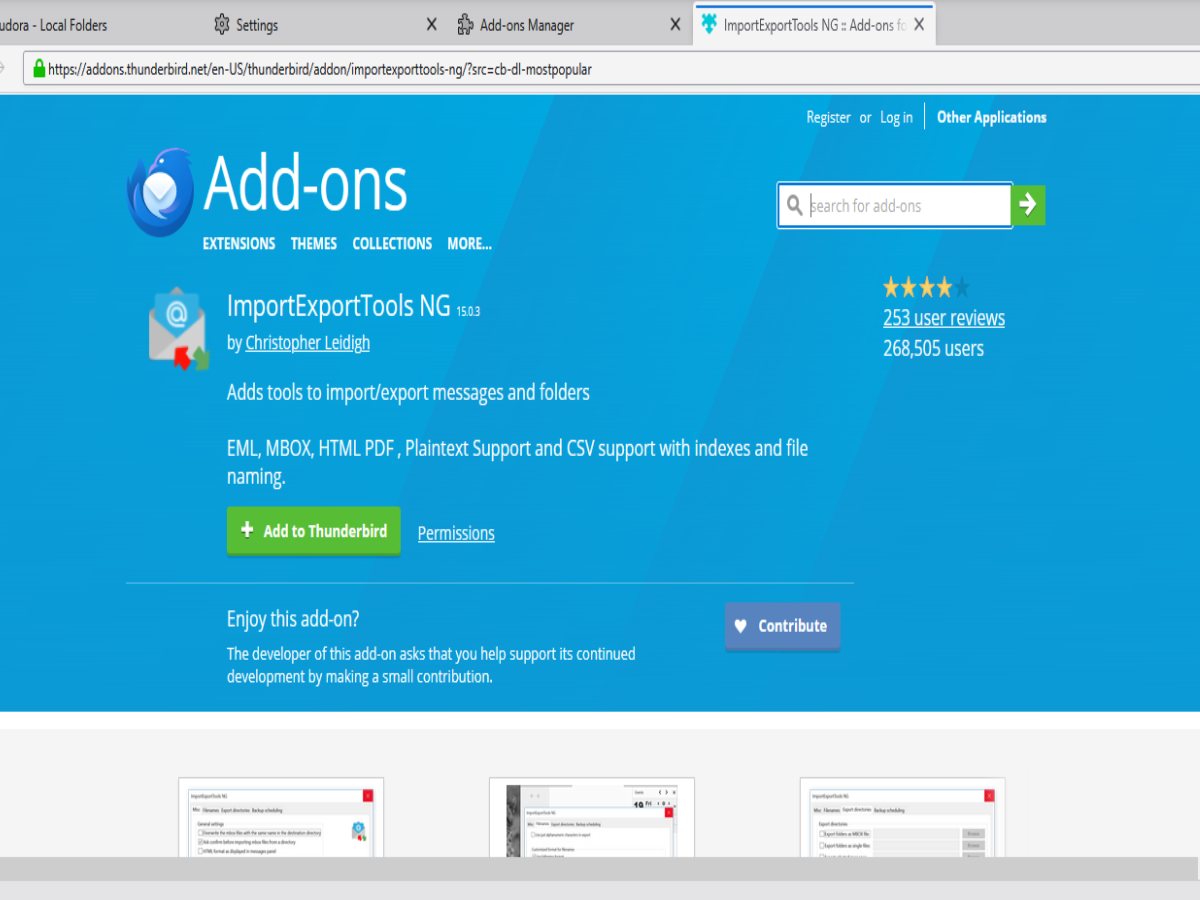
- After it is installed, restart the Thunderbird application.
Part 2: Import MBOX File in Thunderbird
- Now, right-click on the Local Folders in the left pane. Select New Folder.
- Name it and click on Create Folder.
- Again, right-click on the newly created folder. Go to ImportExportTools NG > Import mbox Files > Individual mbox Files.
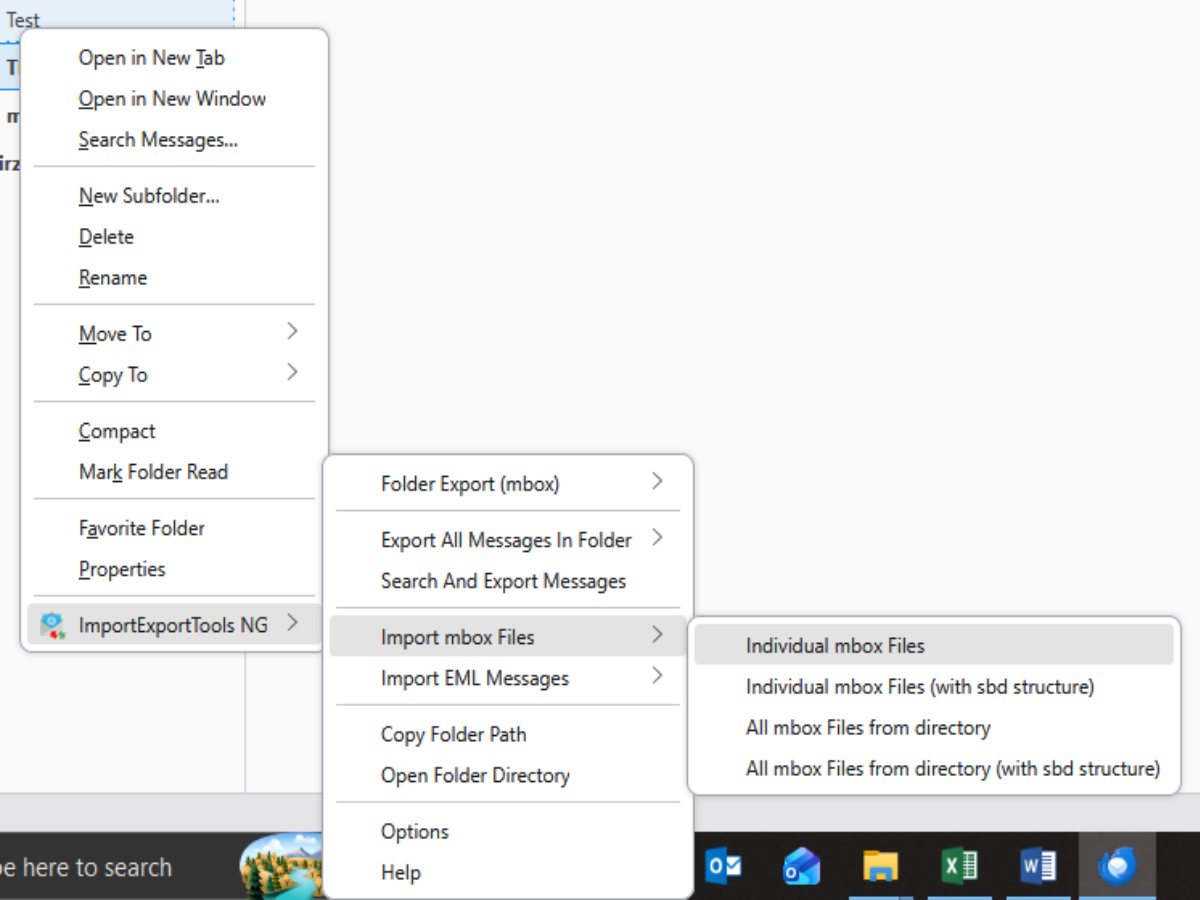
- Select the MBOX file and click Open. You will see all the items after it opens.
Part 3: Save Emails as EML Files
- Now, select the required email messages and right-click on them. Click on Save As.
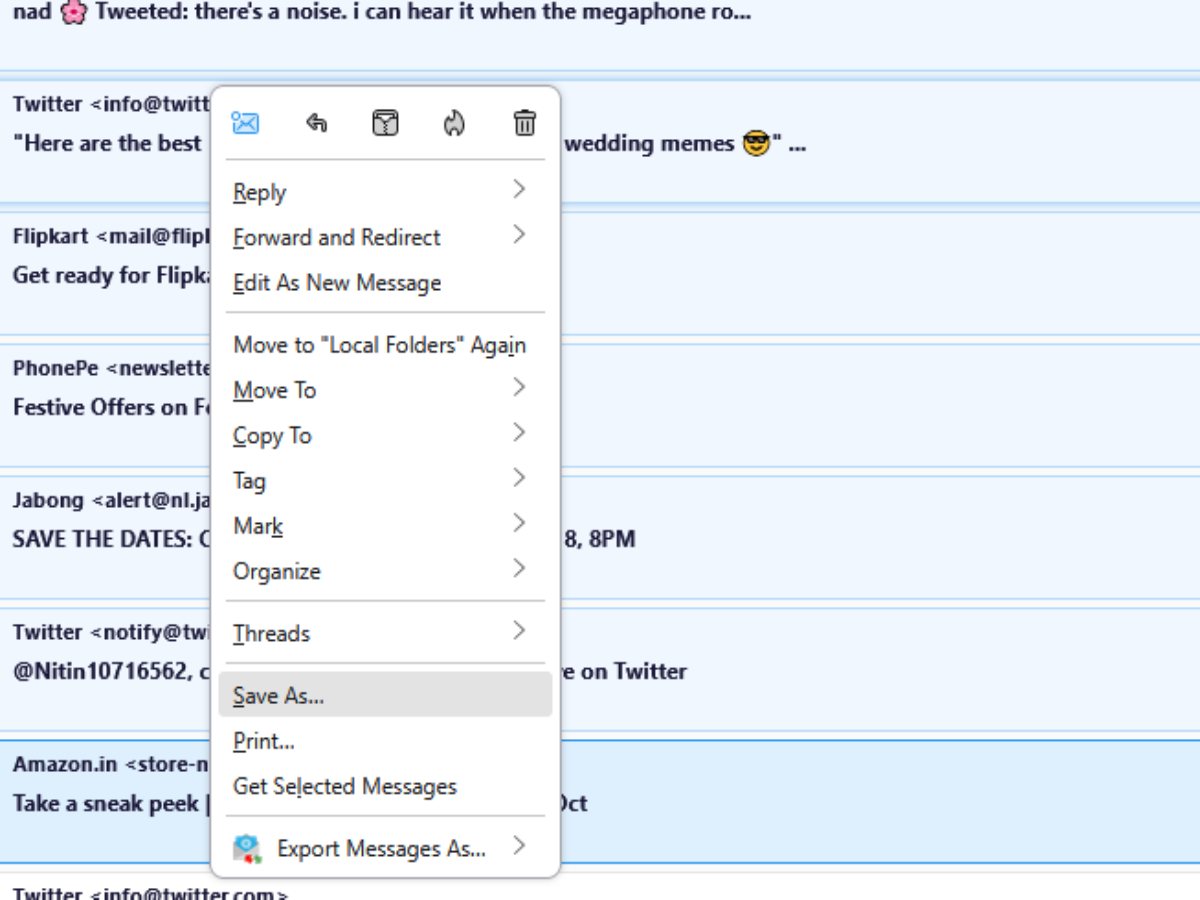
- Choose the destination folder and click on Select Folder. It will save the emails in .eml format in the selected folder.
Part 4: Move the EML Files to Outlook
- Launch the Outlook app on your Windows PC.
- Right-click on the left pane and create a new folder.
- Select the .eml files and drag and drop them into the newly created folder in Outlook.
- You will see the MBOX emails in Outlook.
Limitations of the above workaround:
- Lengthy and time-consuming process
- Installation of multiple software and add-on is required
- Chances of missing email messages from different mailbox folders while saving them as EML files
- Not suitable for converting a large number of emails
Method 2: Convert MBOX File to PST
Outlook primarily supports the PST file format for import purposes. So, to view MBOX file in Outlook, you’ll need to first convert the MBOX file to PST format. There are several applications available on the web that you can use to convert MBOX to PST. One of them is Stellar Converter for MBOX. It is a powerful Windows-based MBOX to PST converter tool that lets you convert your mailbox data from the selected MBOX file to the Outlook-supported PST file. It has a built-in mailbox preview functionality that you can use to view emails, verify data integrity, check attachments, and even embedded images. It preserves the mailbox folder structure and hierarchy in the resultant PST file.
Some salient features of this advanced MBOX to PST converter are:
- Accurately converts MBOX into Outlook PST file
- Preview mailbox items after conversion
- Save selected mailbox items as EML or MSG files
- Apply filters or exclude deleted or spam/junk mailbox items from the resultant PST file
- Auto-split large PST file at around 45GB
- Directly exports data from the MBOX file to an existing Outlook profile
- Compatible with MBOX files of 17+ email clients, including Apple Mail, Mozilla Thunderbird, Google Takeout (Gmail), and Eudora.
Stellar also has an online MBOX to PST converter that can convert your MBOX file to PST in 3 simple steps: Upload > Convert > Download. You can use it on a Windows, Mac or even Linux PC to convert MBOX files to PST format in no time. After converting the file, you can import it into Outlook via the built-in Import/Export feature.
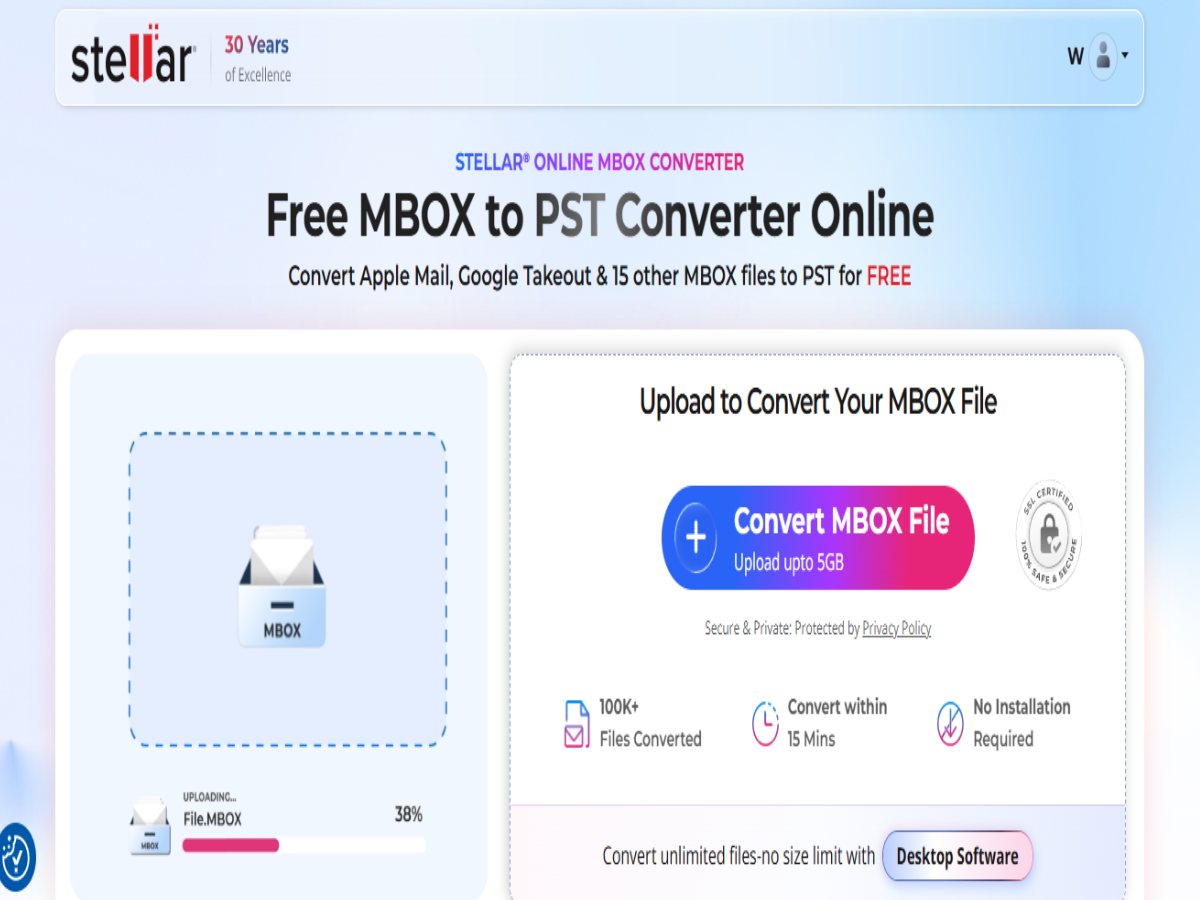
Below are some features of Stellar’s online MBOX to PST converter:
- Converts a single MBOX file of size ≤ 100 MB to PST for free
- Compatible with mailbox archives (MBOX) from different email clients like Apple Mail, Mozilla Thunderbird, Eudora, and more.
- Works on macOS, Windows, and Linux
- Uploaded and converted files are deleted from the servers after 24 hours
- Premium edition to convert up to 5 MBOX files of size ≤5GB
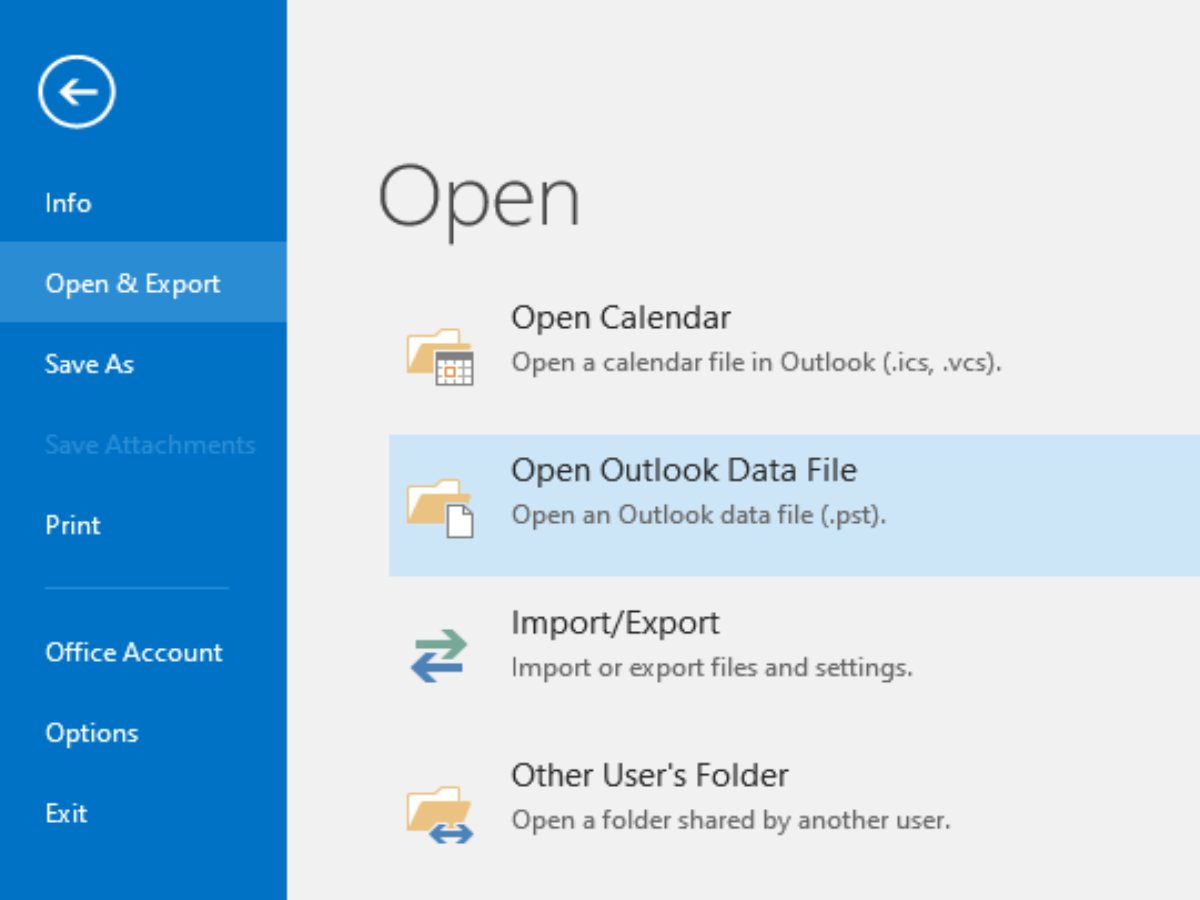
After the file conversion, you can open the PST file in Outlook. For this, launch MS Outlook and go to File > Open & Export > Open Outlook Data File. Select the PST file and click on Open.
Conclusion
If you’re trying to open MBOX files in Outlook, follow the methods mentioned above. The manual method of saving emails as EML files is lengthy and time-consuming. Alternatively, you can convert the MBOX into the Outlook PST format by using a specialized MBOX to PST converter tool like Stellar Converter for MBOX. It lets you convert MBOX into PST format with 100% accuracy and without altering the mailbox structure.
